

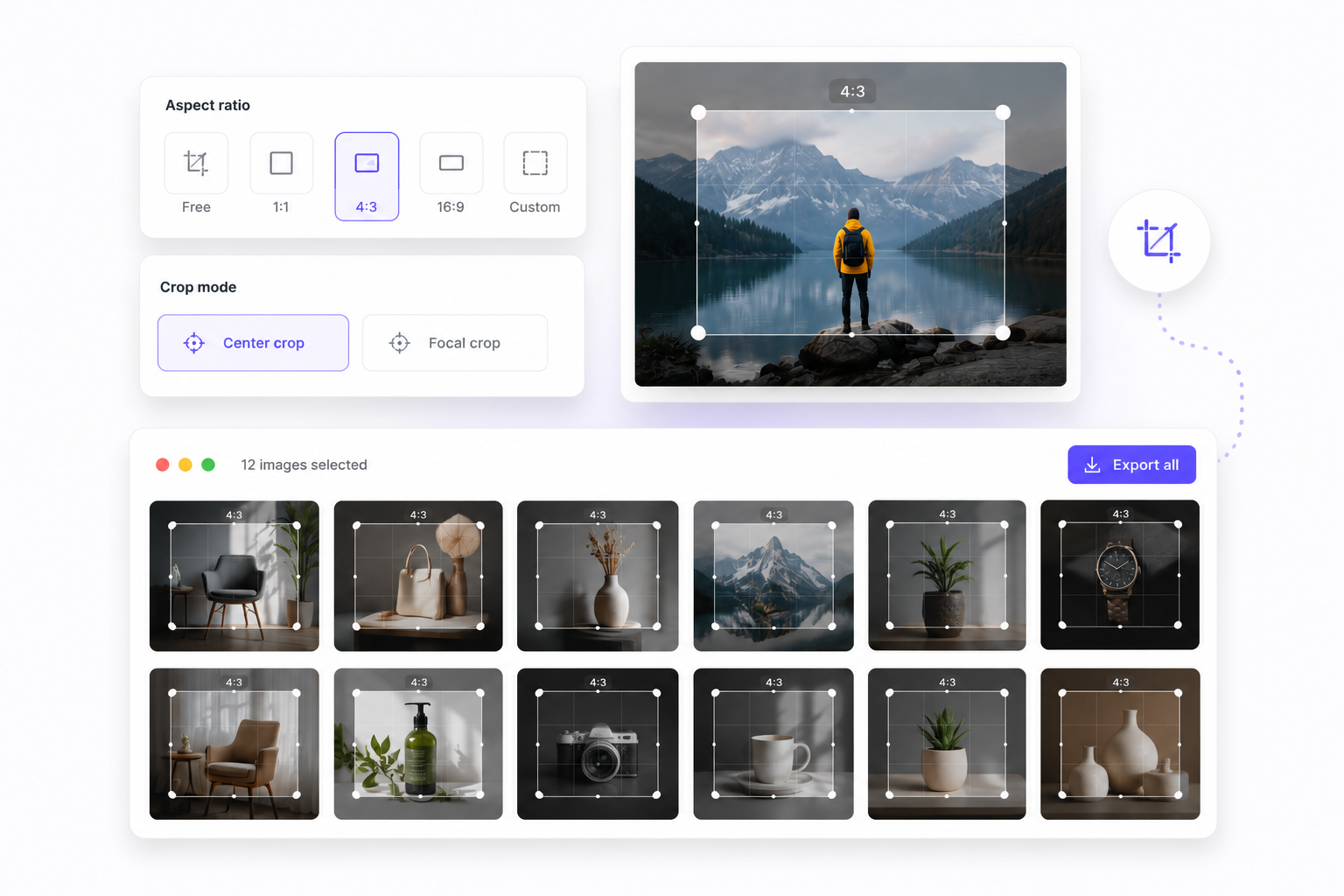
Every marketplace, social feed, and CMS has its own aspect ratio rules. When you receive a folder of mixed-orientation photos, the usual fix is painful: open one file, drag the crop box, save, repeat — two hundred times.
Bulk image crop should not require a desktop suite or a crop-only website that forces you to re-upload for the next step.
Why batch cropping breaks down
- Mixed source sizes — Supplier folders combine portrait, landscape, and square shots. Manual cropping makes it hard to keep the same frame across every SKU.
- Platform ratio rules — Amazon, Shopify, Instagram, and ad networks each expect different ratios. Switching presets file by file wastes hours.
- No preview at scale — Single-file tools hide whether your crop box still fits the smallest image in the batch until export fails.
- Dead-end workflows — Crop on site A, compress on site B. The same images get uploaded twice before you can publish.
What bulkimage.io crop does differently
The bulk image crop tool is built for queue-based batch editing. Upload once, set one crop configuration, apply it across the entire queue, then chain compress, resize, watermark, or rename in the same session.
Core processing runs locally in your browser — standard crops do not upload to our servers.
Key features
- Preset ratios — 1:1, 4:3, 16:9, 3:4, 9:16, free-form, or custom width × height.
- Uniform vs individual mode — Share one crop size across every file, or fine-tune each image independently.
- Rotate and flip — Fix orientation instantly without leaving the crop panel.
- Live preview — See the crop grid and output dimensions on every file before export.
- Pipeline handoff — After cropping, switch to compress or resize without re-uploading.
Common crop workflows
- E-commerce product grids — Upload SKU folder → 1:1 uniform crop → compress under 200 KB → prefix rename → ZIP export.
- Blog and newsletter heroes — Batch crop to 16:9 → resize to exact pixel width → export WebP for faster page loads.
- Social content packs — Crop master assets to 1:1, 4:5, and 9:16 variants from one upload queue.
- Real-estate and gallery sets — Uniform 4:3 crop with center focal point so every listing thumbnail aligns in the grid.
Tips for consistent results
- Start with similar resolutions — Uniform mode caps crop size to the smallest image in the queue; grouping like-sized files avoids unexpected clamping.
- Preview the extremes — Check the shortest and widest files in the batch before applying a shared crop box.
- Crop before compress — Removing unused pixels first often yields smaller final files after compression.
Getting started
Upload batch → choose ratio & mode → preview → apply → export or chain next tool
- Upload — Drag a folder of JPEG, PNG, or WebP files into the editor.
- Configure — Pick a preset ratio or enter custom dimensions; choose uniform or individual mode.
- Export — Download the batch or continue to bulk image compress or bulk image resize in the same session.
Ready to stop cropping one file at a time? Open the bulk image crop editor, upload your folder, and unify every aspect ratio in minutes.